Most Gears of War: E-Day crashes on PC are fixed by working through this order: update your graphics driver, close every overlay and monitoring tool (and update OBS to 29.0.0 or later), verify the game files and repair Easy Anti-Cheat, then run the Xbox Gaming Services repair tool and set your system clock to sync automatically. On the Game Pass version, a "GDK runtime is not available" error is fixed by moving dstoragecore.dll. Also make sure the game is on an SSD and give the first launch 2–5 minutes to compile shaders.
Check these first
Update the game before anything else. A patch released on October 5 brought stability, performance and hardware compatibility improvements. It also improved Xbox sign-in when your system clock is significantly wrong, and fixed a split-screen sign-out error called "Bilefrog-Kalona".
Next, confirm your PC meets the hard requirements: a graphics card with hardware ray tracing, an SSD and DirectX 12. If it does not, the game failing to launch is expected rather than a bug. See our system requirements page.
1. Update your graphics driver
Outdated drivers are the most common cause of crashes. Download the latest driver directly from NVIDIA, AMD or Intel. During the beta, the official minimum versions were:
| GPU vendor | Minimum driver (beta) |
|---|---|
| NVIDIA | 610.74 |
| AMD | 26.6.4 |
| Intel | 101.8864 |
Intel Arc A580 and B580 users must also enable ReBAR and Above 4G Decoding in the BIOS. On Arc, shaders are recompiled every launch, so a long startup is normal.
2. Close overlays and background apps
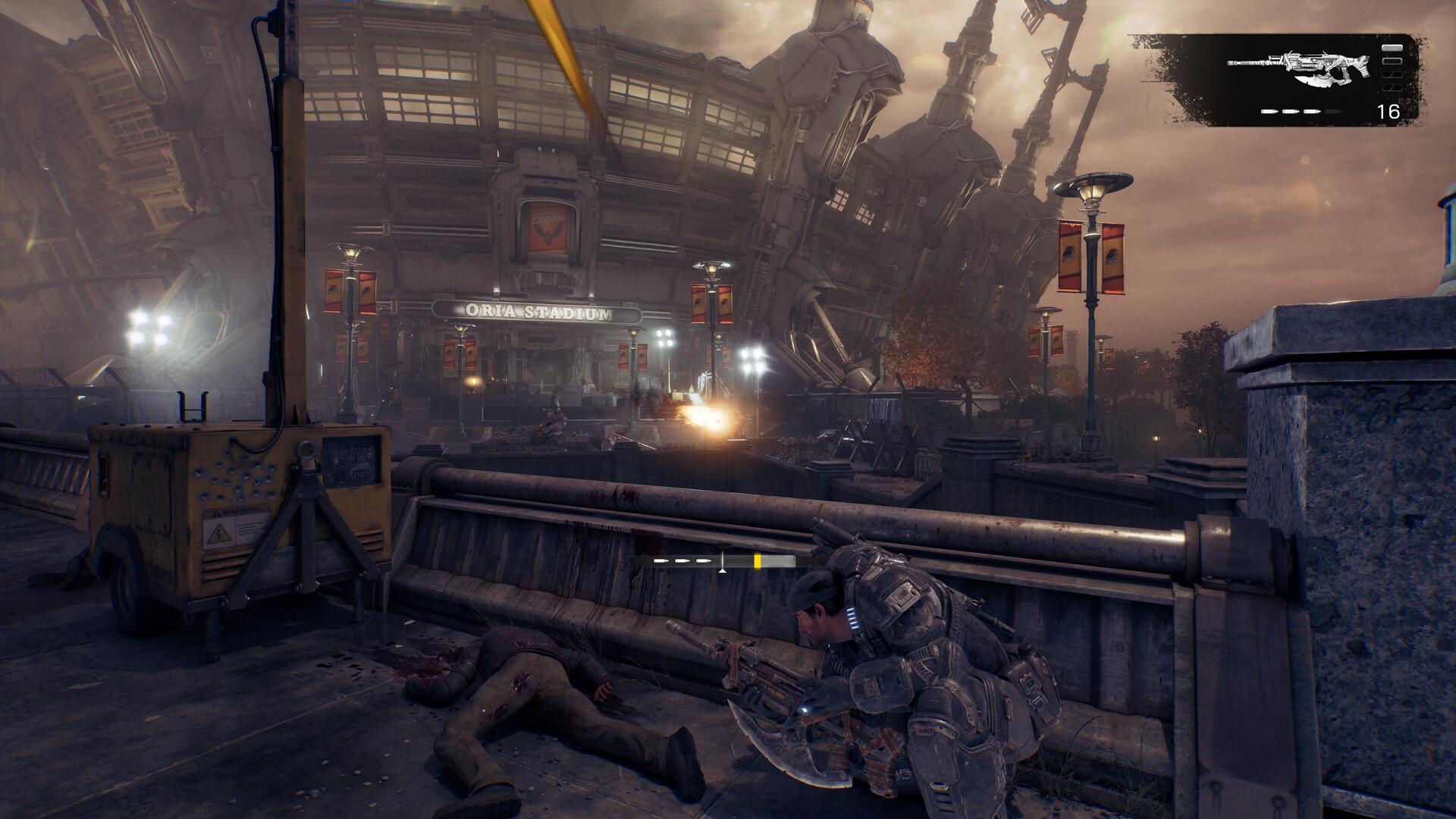
Overlays and monitoring tools frequently clash with Easy Anti-Cheat. Close them all, then launch the game. If it works, re-enable them one at a time to find the culprit.
- Overlays: Discord, Steam, Xbox Game Bar, NVIDIA and AMD overlays
- Recording: OBS must be version 29.0.0 or later, or it can crash the game
- Monitoring and peripherals: MSI Afterburner / RTSS, SteelSeries GG, G HUB, Synapse, iCUE
- Antivirus: add the game folder to exclusions in Norton, Malwarebytes, Bitdefender and others; Comodo may block game files outright
Also avoid being signed in to both the Xbox app and the Windows Store at the same time, which the developer flagged as a known issue.
3. Verify files and repair Easy Anti-Cheat
- Steam: right-click the game → Properties → Installed Files → Verify integrity of game files.
- Xbox app: the game → ⋯ → Manage → Files → Verify and repair.
- Easy Anti-Cheat: open the game folder → EasyAntiCheat → run the installer as administrator → Repair Service.
If the game seems stuck on the anti-cheat screen, wait at least two to three minutes. Check Task Manager to see whether CPU and disk activity are still happening. Only force-close after about five minutes.
4. Repair Gaming Services and fix your clock
Download the Gaming Services Repair Tool for PC from Xbox's official support site and run it. This fixes a common source of launch failures on both Steam and the Xbox app. Restart your PC afterwards.
Then open Windows date and time settings and turn on automatic time and time zone, and press Sync. A wrong system clock can break Xbox authentication, which the October 5 patch specifically addressed. Check your region setting while you are there.
5. Fix "GDK runtime is not available" (Game Pass)
This error affects the Game Pass / Xbox app version and relates to the game's DirectStorage files. The fix is to move a DLL out of the way. Keep a backup rather than deleting it.
- Go to Xbox Games > Eday > Content > FairlightConcept > Binaries > WinGDK.
- Move dstoragecore.dll to your desktop as a backup.
- Run GOWEDay.exe from the same folder.
- Go back to Xbox Games > Eday > Content and run start_protected_game.exe.
- If it still fails, also move dstorage.dll, verify the files, and launch from the Xbox app.
6. More things to try
- Make sure the game is installed on an SSD; on Steam use Settings → Storage → Add Drive → Move.
- Give the first launch two to five minutes to compile shaders.
- Add -DX11 or -DX12 as a Steam launch option and test each.
- Press Alt+Enter to start in windowed mode.
- In Windows graphics settings, assign the game to your dedicated GPU.
- Install the Xbox app if you play on Steam — or, if it is installed, try uninstalling it.
- Run the game as administrator.
Match your symptom to a fix
| Symptom | Most likely fix |
|---|---|
| Crash on startup | Update GPU driver, close overlays, verify files |
| Stuck on anti-cheat screen | Wait 2–5 minutes, then repair Easy Anti-Cheat |
| Xbox sign-in fails | Set Windows time to sync automatically; run Gaming Services repair |
| "GDK runtime is not available" | Move dstoragecore.dll (Game Pass version) |
| Crash while recording | Update OBS to 29.0.0 or later |
| Long first launch | Normal: shaders compiling; Arc recompiles every launch |
| Split-screen player signed out | Install the October 5 patch ("Bilefrog-Kalona" fix) |
Work down the list in order rather than trying everything at once. That way, you will know which change actually fixed the problem. Most players are sorted by the first two or three steps.
Keep a note of what you changed, especially launch options and moved DLL files. If a later patch fixes the underlying problem, you may want to undo your workaround. Verifying the game files restores any files you moved.
Prefer a video walkthrough?
Several short video guides walk through the same fixes on screen, including the Gaming Services repair tool, Easy Anti-Cheat repair and DirectX launch options. They are useful if you are not sure where a setting lives in Windows or Steam. The steps match the checklist on this page.
If it crashes mid-game
Crashes during play are often settings-related. Try Medium textures, Low shadows, effects and post-processing, V-Sync off, borderless window and DLSS or FSR on Quality. If that stops the crashes, raise settings one at a time.
To reset graphics settings completely on the Microsoft Store version, delete the config files in %LOCALAPPDATA%\FairlightConcept\Saved\Config\WinGDK. The game recreates them with defaults. Once stable, use our best PC settings guide to tune it back up.
Still not launching?
The game is reported to fail to launch without an internet connection, so check that you are online. It uses Easy Anti-Cheat and Xbox network checks rather than Denuvo; see our Denuvo page for details. If nothing here works, the official Gears of War Discord is the place to report your issue.
Sources
References used for this page. Figures were checked on October 6, 2026.